 Classic Stars & Markers for Gmail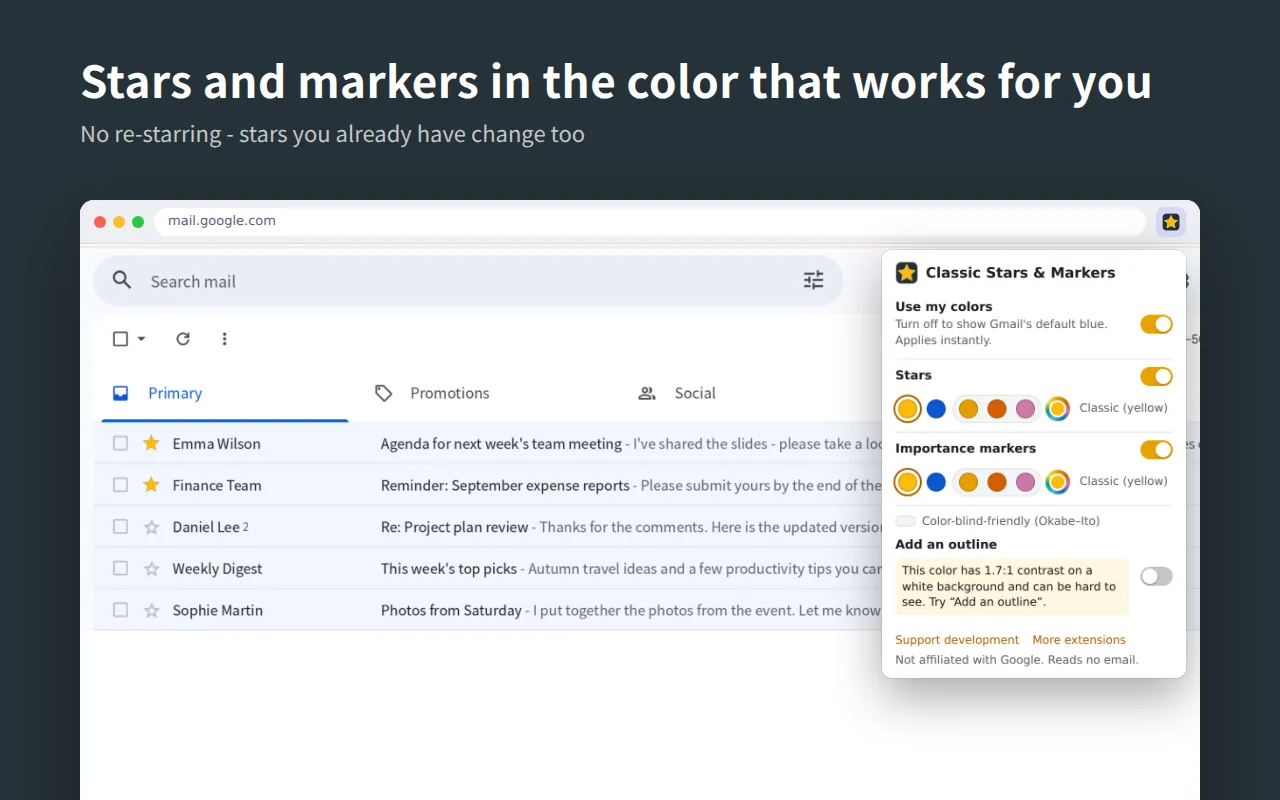
Why did Gmail’s stars turn blue?
Google changed the default color of Gmail’s stars and importance markers from yellow to blue to make them more accessible: bright yellow has low contrast against a white background, which makes it hard for some people to see.
But everyone sees differently. Some people find yellow stars easier to spot, and some already use the blue star to mean something else. Rather than forcing yellow back, Classic Stars & Markers lets each person choose the star color that works for them.
What it does
Existing stars change too
No need to un-star and re-star. Stars you already have switch to your color right away — in the inbox, search results, and opened messages.
Stars and importance markers
Set the star color and the importance marker color separately, change only one of them, or flip one switch to go back to Gmail’s default blue.
Never reads your email
It only changes how the icons are colored. It doesn’t read your mail or talk to any server. The only permission is storage for your settings.
Star and marker colors you can choose
- Classic yellow
- Google default blue
- Orange
- Vermillion
- Reddish purple
- Any color
Orange, vermillion, and reddish purple come from the Okabe–Ito palette, which stays distinguishable across common types of color vision deficiency. If you pick a color that’s hard to see on a white background (like yellow), the popup suggests adding an outline, so stars stand out without relying on color alone.
How to change Gmail star color back to yellow
- Add Classic Stars & Markers to Chrome, then reload any open Gmail tab once.
- Your stars and importance markers are now yellow. To pick another color, click the extension icon in the toolbar — changes apply instantly.
- To go back to Gmail’s blue, turn off “Use my colors”.
FAQ
Why are my Gmail stars blue now?
Google changed the default color of Gmail’s stars and importance markers from yellow to blue to improve accessibility, because bright yellow has low contrast on a white background.
Can I make Gmail stars yellow again without an extension?
Partly. In Gmail, go to Settings → See all settings → General → Stars and choose the yellow star. This only applies to messages you star from then on; stars you already have stay blue unless you remove and add them again. Classic Stars & Markers changes the stars you already have, without re-starring.
Can I change the color of Gmail’s importance markers?
Gmail has no setting for it. With Classic Stars & Markers you can show importance markers in yellow or any other color, separately from stars.
I don’t see importance markers in Gmail. How do I show them?
In Gmail, click the gear icon, then See all settings → Inbox → Importance markers → Show markers, and click Save changes.
I use several star types. What happens to them?
Red, orange, green, purple and other stars stay as they are. The blue star looks the same as the new default star, so it is shown in your chosen color too.
Does the extension read my email?
No. It only changes how the star and marker icons are colored. It does not read your mail, does not connect to any server, and its only permission is storage for your settings. See the privacy policy.
Support
Contact
Bug reports and requests: [email protected]. Please include “Classic Stars & Markers” in the subject.
Support development
Classic Stars & Markers is free. If it helps you, you can support its development here.